
Skip to content

Getting started

  • Sign in for the first time
  • Multi Factor Authentication
  • Login
  • Reset password
  • Microsoft 365 Dashboard

General

  • Multi Factor Authentication
  • Login
  • Reset password
  • Update your profile and phone number
  • In case your device is lost or stolen

Office applications

  • Use Word, Excel and Powerpoint in the webbrowser
  • Install Office on your laptop

Outlook

  • Email signature
  • Using Outlook
  • Share your calendar someone
  • View calendars from others
  • Set up Outlook on iPhone
  • Set up Outlook on Android
  • Adding a Shared Mailbox

Teams

  • Using Teams
  • Accelerant Background in Teams
  • Project files and folders
  • Synchronize Teams files to OneDrive

OneDrive

  • Using OneDrive
  • Change the language of OneDrive in the browser
  • Synchronize Teams files to OneDrive
  • Add an extra account to OneDrive

Accelerant project management tool

  • Login
  • My Work dashboard
  • Update your project status report (PSR)
  • Project dashboard
  • Update the issue log
  • Update the risk log
  • Update KPI data
  • Enter actual effort
  • Update Milestone % complete
  • Update and submit your PSR
  • Home
  • Support articles
  • Outlook
  • Share your calendar someone

Share your calendar someone

When you want somebody else within the organization to be able to edit events in your calendar you must give them the right permissions.

  • Open Outlook (on the web or the installed application) and go to the Calendar view.
  • Look for your calendar in the.
  • Click on the 3 dots, and choose Sharing and permissions
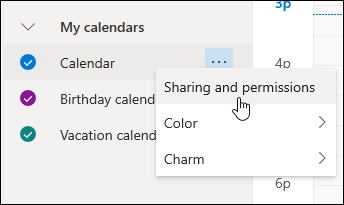
  • FInd the person you want to give access and select the right permission setting.
  • Click Share
  • If you decide not to share your calendar right now or want to remove sharing, select Remove.

Permission settings

There are different settings possible:

  • Can view when I’m busy lets them see when you’re busy but doesn’t include details like the event location.
  • Can view titles and locations lets them see when you’re busy, as well as the title and location of events.
  • Can view all details lets them see all the details of your events.
  • Can edit lets them edit your calendar.
  • Delegate lets them edit your calendar and share it with others.

Private items

Calendar items marked private are protected. Most people you share your calendar with see only the time of items marked private, not the title, location, or other details.  Recurring series marked as private will also show the recurrence pattern.

Using OutlookView calendars from others
Table of Contents
  • Permission settings
  • Private items