
Set up email in the Outlook for Android app

Open Outlook for Android. The icon looks like this:

If you haven’t already, download the Outlook app from your Local Android app store.
Tap Get Started if it’s your first time.
Or, go to Settings > Add Account > Add Email Account.

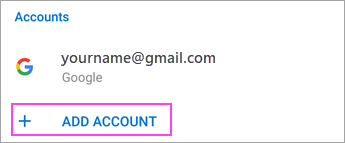
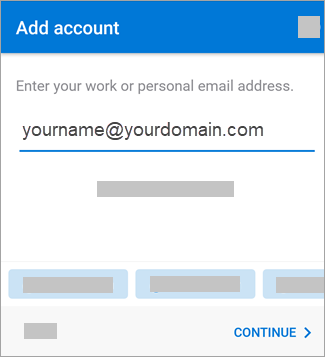
Enter your full email address, then tap Continue.
Note: If you’re prompted for server setting information, you may have to set up manually or use IMAP or POP. See the server settings help section below for details.
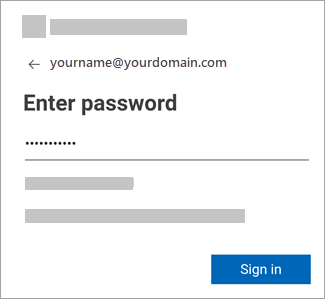
Enter your email account password and tap Sign In or Next.
Note: The sign in screen may look different for you depending on your email provider.
Outlook may request permission to access your calendar, contacts, etc. Tap Yes or Allow.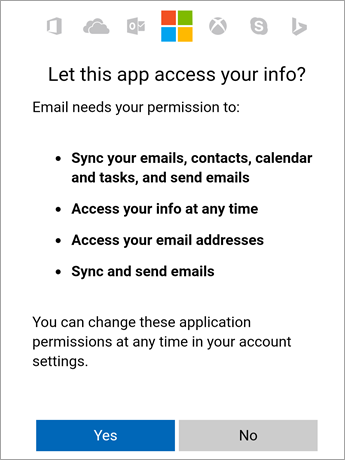
You are now ready to use your email account!