
When you have OneDrive installed on your PC or laptop it will synchronize the files from your personal OneDrive to your local hard drive.
Sync project files from Teams
Project files are stored in Teams. By default you will not see project files from Teams directly in OneDrive. You have to setup synchronization once to get them in OneDrive.
This lets you work directly in File Explorer and access files even when you’re offline. And when you go back online, any changes made to those files will sync automatically.
Synchronize Teams folders
- Go to Microsoft Teams online and select the Files tab in the channel you want to sync.
- Click the Sync button in the menu on the top.
(You only need to do this once on a computer to set up syncing on that computer. After you set up syncing, the files sync automatically.) - If your browser requests permission to use “Microsoft OneDrive,” confirm that this is okay.
The files then sync to a folder on your PC that has the name Accelerant. This folder is automatically added to the left pane in File Explorer. You can’t select to sync to a different location.
Change sync settings
To change the folders that sync for a site, or to stop syncing all files on a site, follow these steps:
- Select the blue OneDrive cloud icon in the Windows taskbar notification area.

(You may need to select the Show hidden icons arrow next to the notification area for the OneDrive icon to appear. If the icon doesn’t appear in the notification area, OneDrive might not be running. Select Start, enter OneDrive in the search box, and then select OneDrive in the search results.)
- Select > Settings.
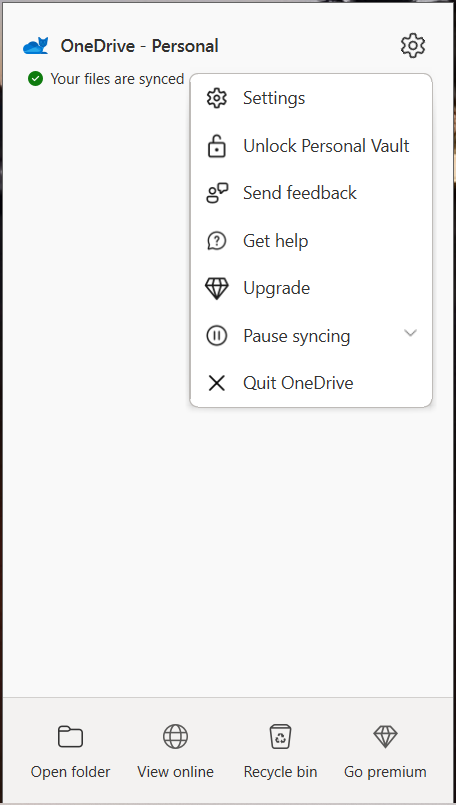
- To see a list of all your syncing sites, select the Account tab.
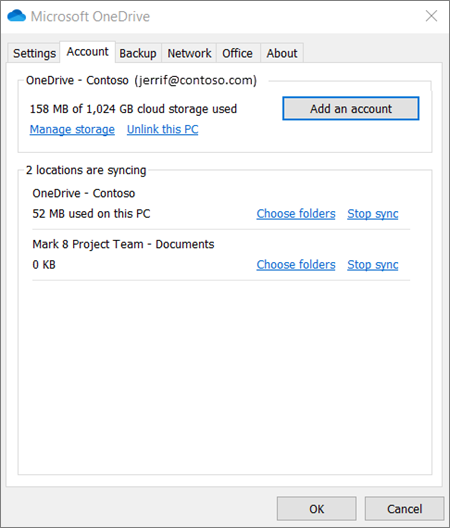
- To change the folders that you’re syncing, select Choose folders for that library, and then select the folders that you want to sync. To stop syncing a site, select Stop sync next to the site. (Copies of the files remain on your computer. You can delete them if you want.)
Related articles: https://support.microsoft.com/en-us/office/sync-sharepoint-and-teams-files-with-your-computer-6de9ede8-5b6e-4503-80b2-6190f3354a88#bkmk_setup