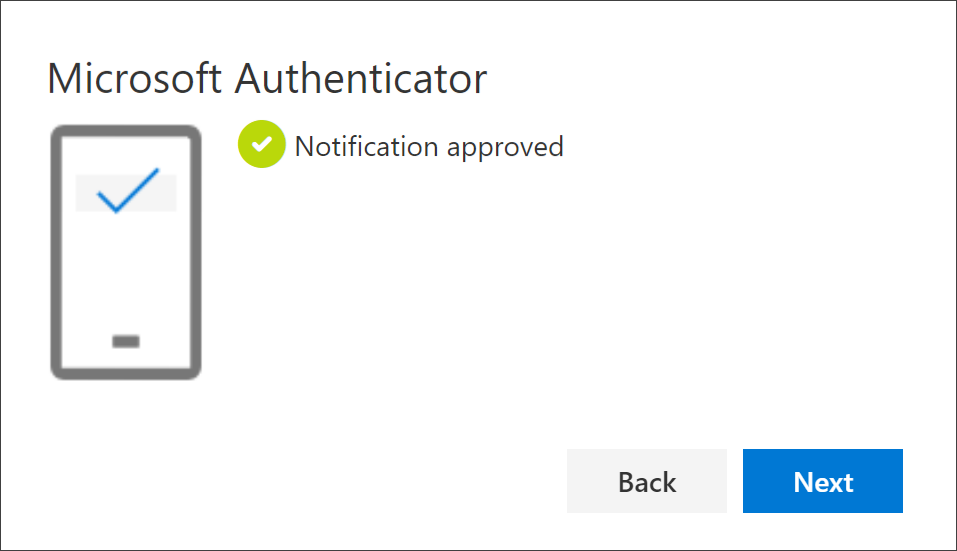
By setting up Multi Factor Authentication (MFA), you add an extra layer of security to your Microsoft 365 account sign-in. For example, you first enter your password and, when prompted, you also type a dynamically generated verification code provided by an authenticator app or sent to your phone.
- Sign in to Microsoft 365 with your Accelerant account with your password at https://login.accelerant.eu.
(When you loginfor the first time you are required to change the password.)
You’ll see the message to provide more information.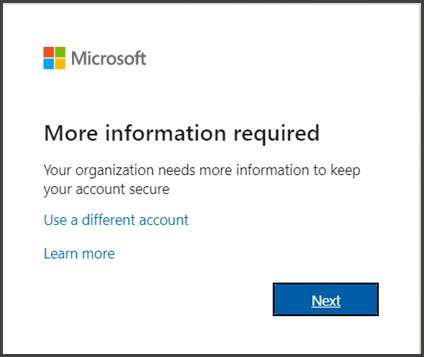
- Choose Next.
Getting started
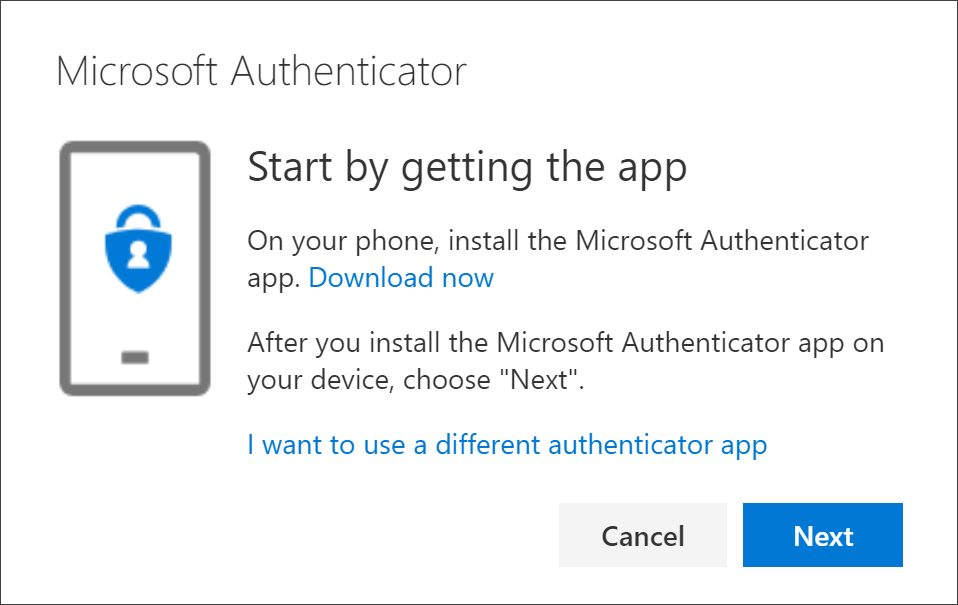
On the Start by getting the app page, download and install the Microsoft Authenticator app on your mobile device, and then select Next.
- To install the Authenticator app on an Android device, go to the Google Playstore and search for Microsoft Authenticator. Or click here to open the download page from your mobile device.
- To install the Authenticator app on an iPhone, go to the App store and search for Microsoft Authenticator. Or click here to open the download page from your mobile device.
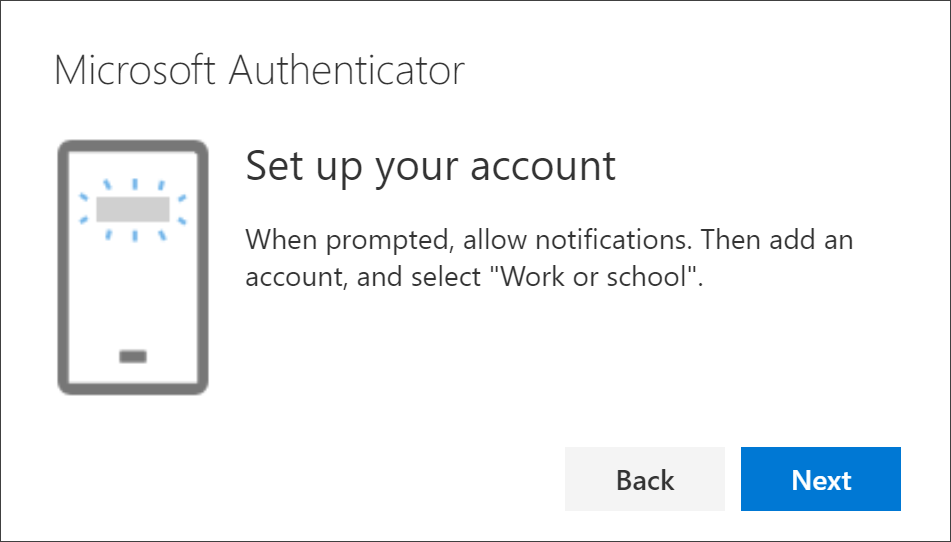
After you install the Authenticator app on your mobile, follow the steps below to add your account:
- Open the Authenticator app on your mobile device, select to allow notifications (if prompted),
- Select (+) in the upper right corner.
- Choose the option Work- or Schoolaccount
Note: The first time you set up the Microsoft Authenticator app, you might receive a prompt asking whether to allow the app to access your camera (iOS) or to allow the app to take pictures and record video (Android). You must select Allow so the authenticator app can access your camera to take a picture of the QR code in the next step. If you don’t allow the camera, you can still set up the authenticator app, but you’ll need to add the code information manually. For information about how to add the code manually, see Manually add an account to the app. - Choose the option Scan QR code.
- Return to the Set up your account page on your computer, and click Next.
Scan the QR code on the page that appears on your laptop
The authenticator app adds your account. - Click Next in the screen on your laptop. You will see a number.
On your mobile device you receive a pop up. Enter the number displayed to activate authentication. - Click Next on your laptop and enter your mobile phone number.
- You will receive a text message with a code. On your laptop enter the code received on your mobile.
After completing these steps your authenticator app and mobile device are successfully connected to your microsoft account.