
Please use the standard Accelerant Teams background in all you video calls internally and externally.
You can download the background image here.
Use installed Teams application
To be able to configure the image as your background in video calls you must use the installed application of Teams on your laptop or desktop. A custom background is not possible when using Teams in a webbrowser.
Click here for more information and to download the Teams application.
Configure the background image
Download the image and save it locally on your PC or laptop and add it to your Teams settings.
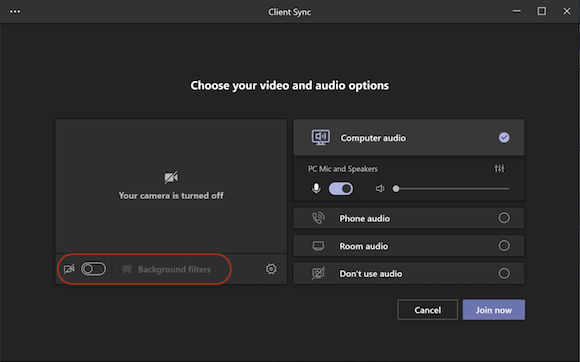
- While you’re setting up your video and audio before joining a meeting, turn on your camera and select Background filters
 .
. 
- To use the background image, select Add new and then select the image to upload from your computer.
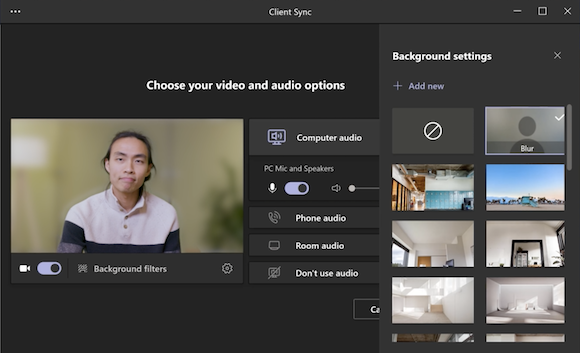
From now on Teams will use this as your standard background in video calls.
More information: https://support.microsoft.com/en-gb/office/change-your-background-in-microsoft-teams-meetings-f77a2381-443a-499d-825e-509a140f4780