
The overall % complete for your project is automatically calculated based on the % complete of all underlying workstreams.
Update the progress in the task plans of the workstreams, to update the progress for the project.
Go to the workstream
In the project dashboard click on the name of the workstream you want to open.
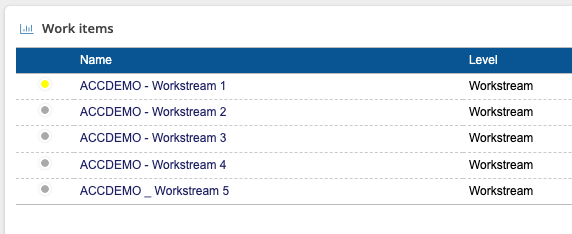
After opening the workstream item you will see the workstream dashboard.
Go to the task plan
In the menu on top click on Tasks to open the task plan.
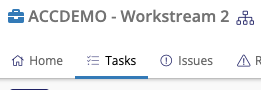
This will open the task plan with gantt chart functionality of the workstream.
Edit the task plan
You will have to set the screen into ‘edit mode‘ (check-out) to make changes. This check-out / check-in functionality prevents two users be able to edit the same plan at the same time.
Check out to start editing
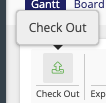
Click on the Check-out button to turn the plan into edit mode.
Update % complete per task
By default the plan for the workstream contains a task per milestone to represent the work to be done in the milestone period. And a task item (Milestone – completed) to represent completion of the milestone. Update the % complete for the tasks to represent progress in the whole milestone.
If you have a complete Steps-to-milestone plan with more detailed tasks in the system update the % complete for multiple tasks to represent current progress.
You can update the completion in the column % complete.
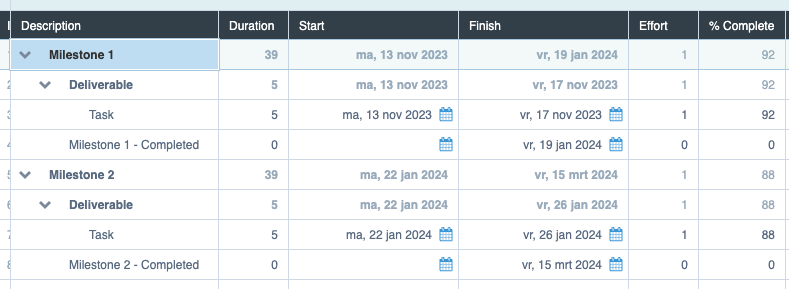
Or double click on the task item to open the task details and update the progress there.
Save and check-in
To save the changes click the Save button.
When done click on the Check-in button to close the editing mode.

If you did not save the changes yet, the system will ask if you would like to save the changes. Click on Yes to save the changes made to the plan and check-in the new status.
Repeat the steps for other workstreams if you would like to update multiple workstream plans.